Pilbot

AI that waits
until you need it.

Summarize pages, ask about any text and dictate into any field — right in Chrome.

Bring your own key

Pilbot in action: the summary button at the top center opens a summary below it; selected text gets an Ask button and the answer appears in the bottom-left corner; a mic button appears below a text field and turns red while dictating; then the Pilbot logo. Summary Summarize any page Rates rose by 25 basis points to slow down inflation. Answer Ask about any text Write a message… Hi team, launch moves to Friday Dictate into any field Pilbot AI that waits until you need it. Install for Chrome

The gist of any page, in one click

A small button rests at the top center of the screen. Click it and the summary of the whole page opens right below.

  • Always at the top, never in your way.
  • Not needed? Hide it with ×.
  • Summarize the page
  • Hide the button

Don’t understand something?

Select the text and tap the speech bubble. The answer pops up in the bottom-left corner.

  • A summary or a straight answer.
  • Not now? Close it with ×.
  • Ask Pilbot
  • Close the button

Rather say it than type it?

Click into any text field and a mic button appears right below it. Tap it and Pilbot types what you say.

  • Shows up only when a field is focused.
  • Emails, chats, forms and search.
  • Tap and speak
  • Tap to stop

Want answers that fit you?

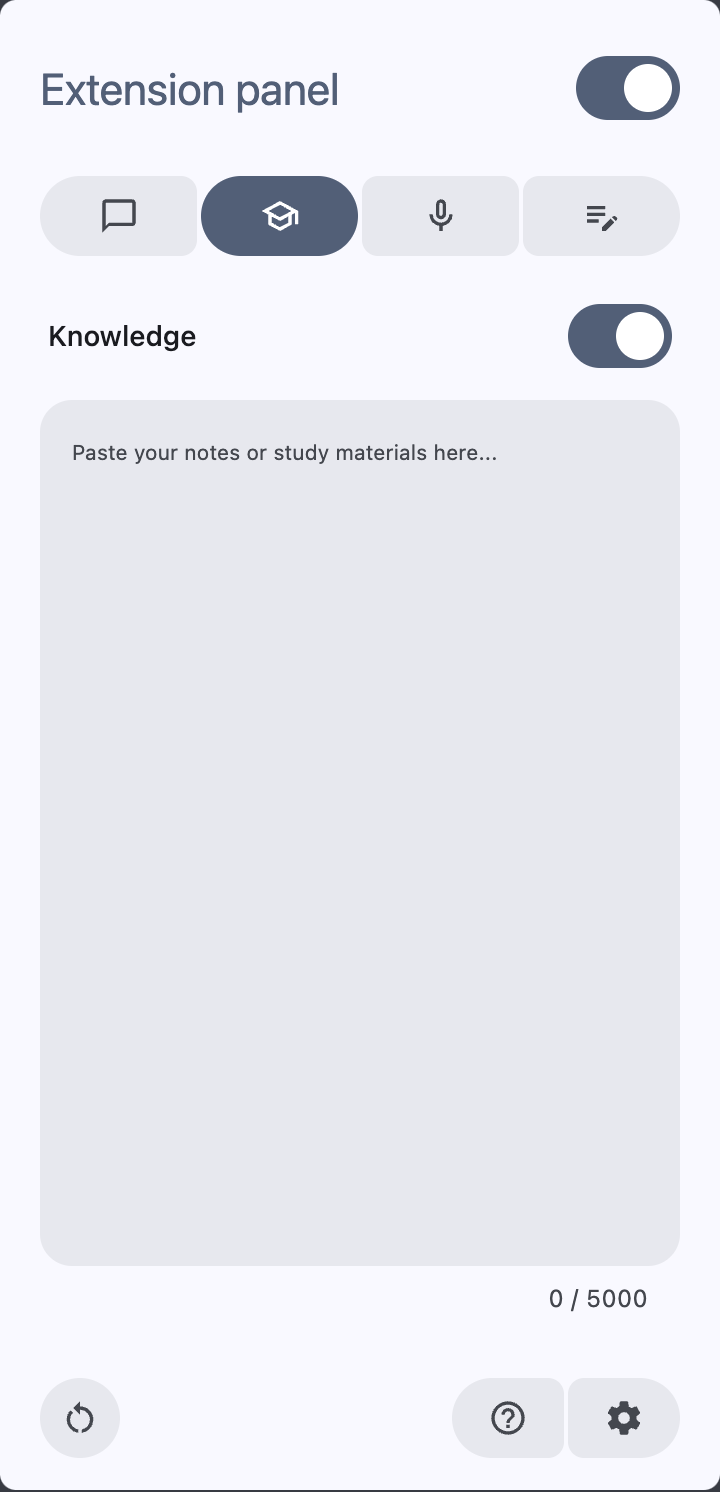
Paste your notes or study materials. Pilbot uses them in every answer.

  • Up to 5,000 characters.
  • Turn it on or off with one switch.
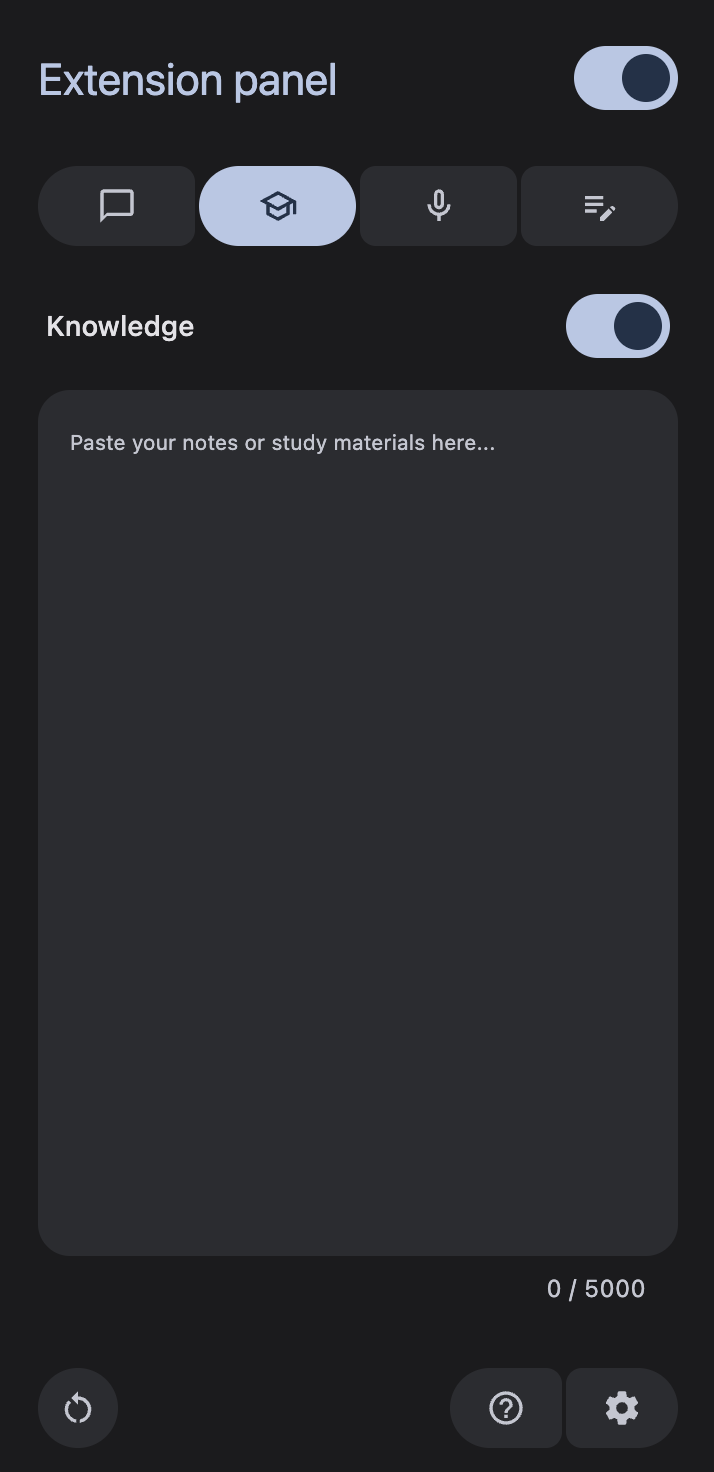
The Knowledge tab of the Pilbot panel. The Knowledge tab of the Pilbot panel.

Make it yours

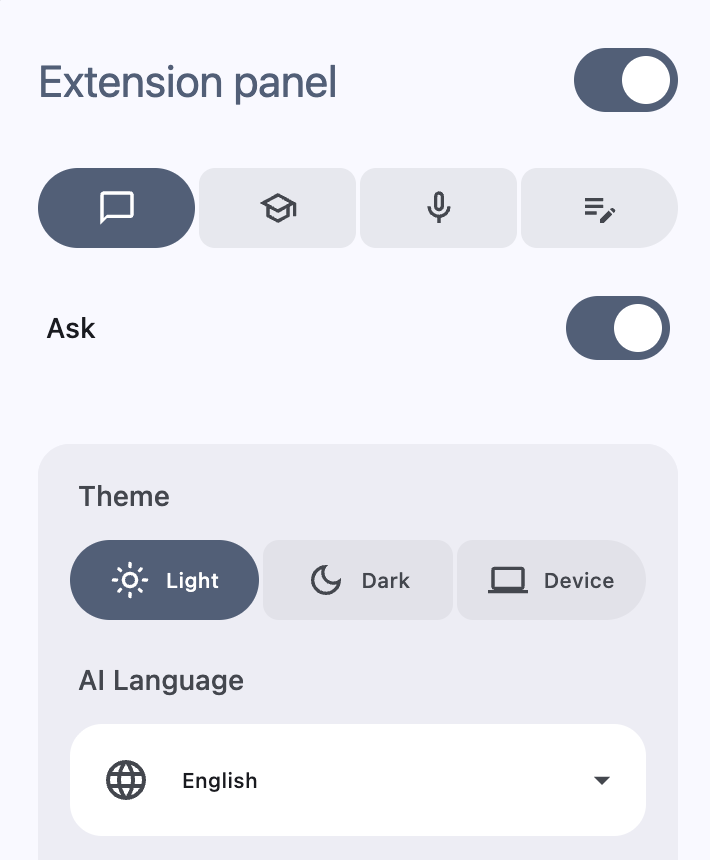
Choose the theme and the language Pilbot answers in.

  • Light, dark or device theme.
  • Answers in your language.
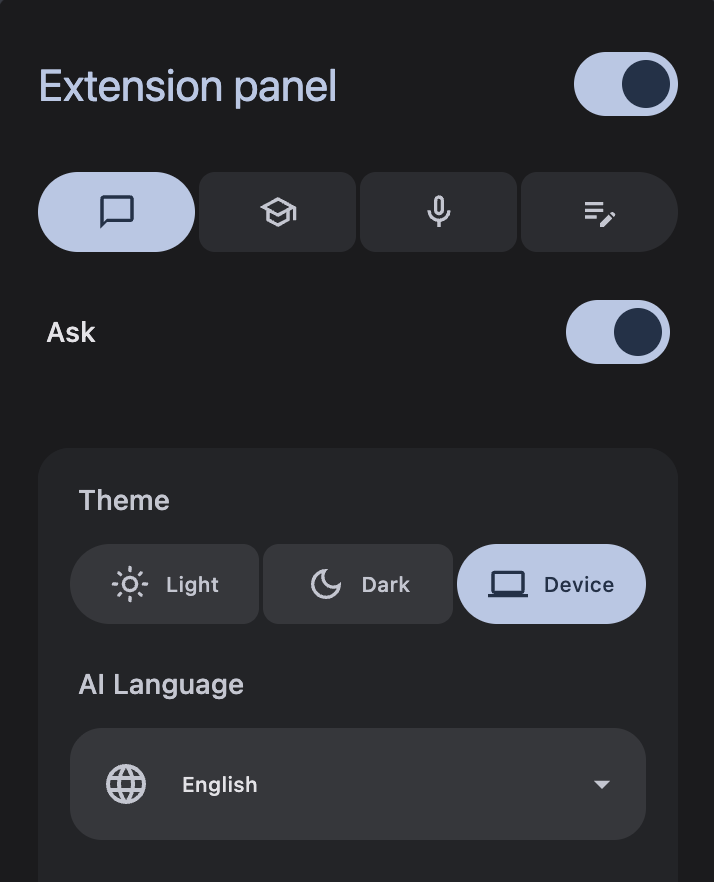
Pilbot settings: theme and AI language. Pilbot settings: theme and AI language.

Frequently asked questions

What is Pilbot?

An AI extension for Google Chrome. It summarizes pages, answers questions about selected text and lets you dictate into text fields.

How do I summarize a page?

Click the summary button at the top center of the screen — the summary opens right below it. Hide the button with × if you don’t need it.

How does Ask work?

Select text, then tap the speech bubble to get an answer. Don’t need it? Tap × to close the button.

What is Knowledge?

Your own notes or study materials, up to 5,000 characters. While it’s on, Pilbot uses them in every answer.

Do I need my own API key?

Yes. Pilbot runs on your own API key, so you stay in control of your usage and costs.

Can Pilbot answer in my language?

Yes. Choose the AI language in the panel’s Settings.

Make every page a little easier.

Add Pilbot to Chrome. It waits quietly until you need it.

Bring your own key

Install Pilbot

Step 1 of 5

Open the extensions page

In Google Chrome, open a new tab and paste this address into the address bar.

chrome://extensions

Step 2 of 5

Turn on Developer mode

Flip the Developer mode switch in the top-right corner of the page.

Step 3 of 5

Download and unzip Pilbot

Unzip the file and keep the folder somewhere safe. Chrome loads Pilbot from it, so don’t delete it.

Download ZIP Version 1.0.0 · 102 KB

Step 4 of 5

Choose Load unpacked

Click Load unpacked in the top-left corner and select the unzipped Pilbot folder.

Pin Pilbot from the puzzle-piece menu next to the address bar.

Step 5 of 5

Bring your own key

Click the Pilbot icon in the toolbar. The side panel walks you through setup: pick an AI provider (Groq by default), paste your API key and choose the models.

Your key is encrypted and stays in your browser. Requests go straight to your provider, never to a Pilbot server. Privacy policy